Free AI Image Upscaler Online
Enlarge and sharpen any photo up to 4× with this free online AI image upscaler. No sign-up, no watermark — just a crisper image in seconds.
Free daily upscales·No sign-up needed·No watermark·Private & secure
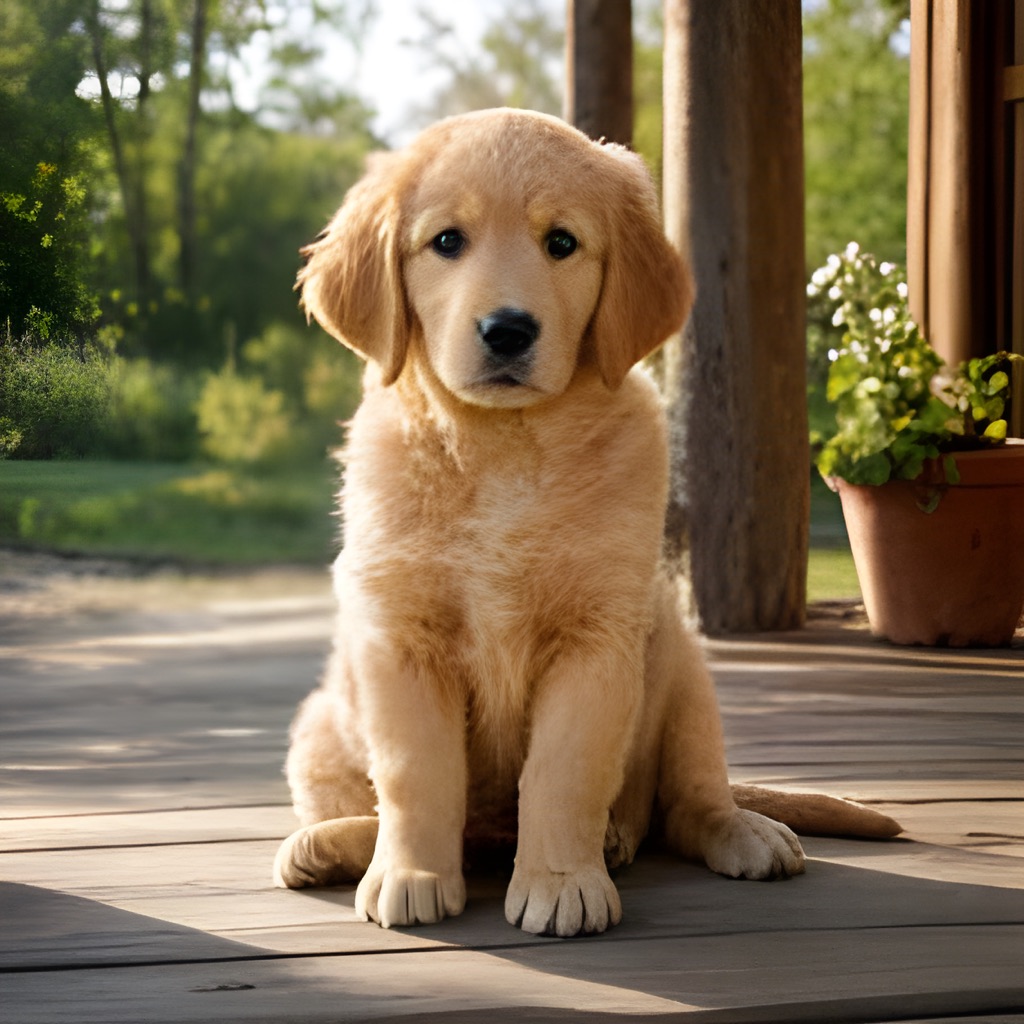
Real 4× results from this online upscaler — see the before / after ▸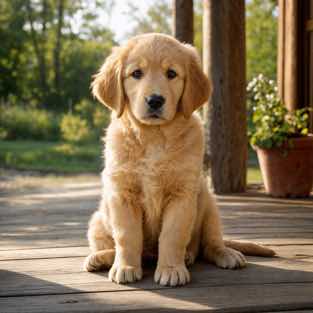
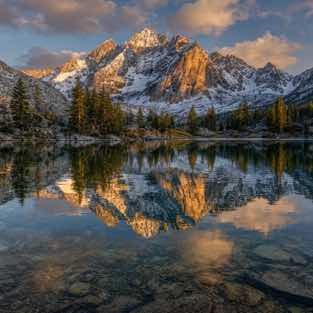
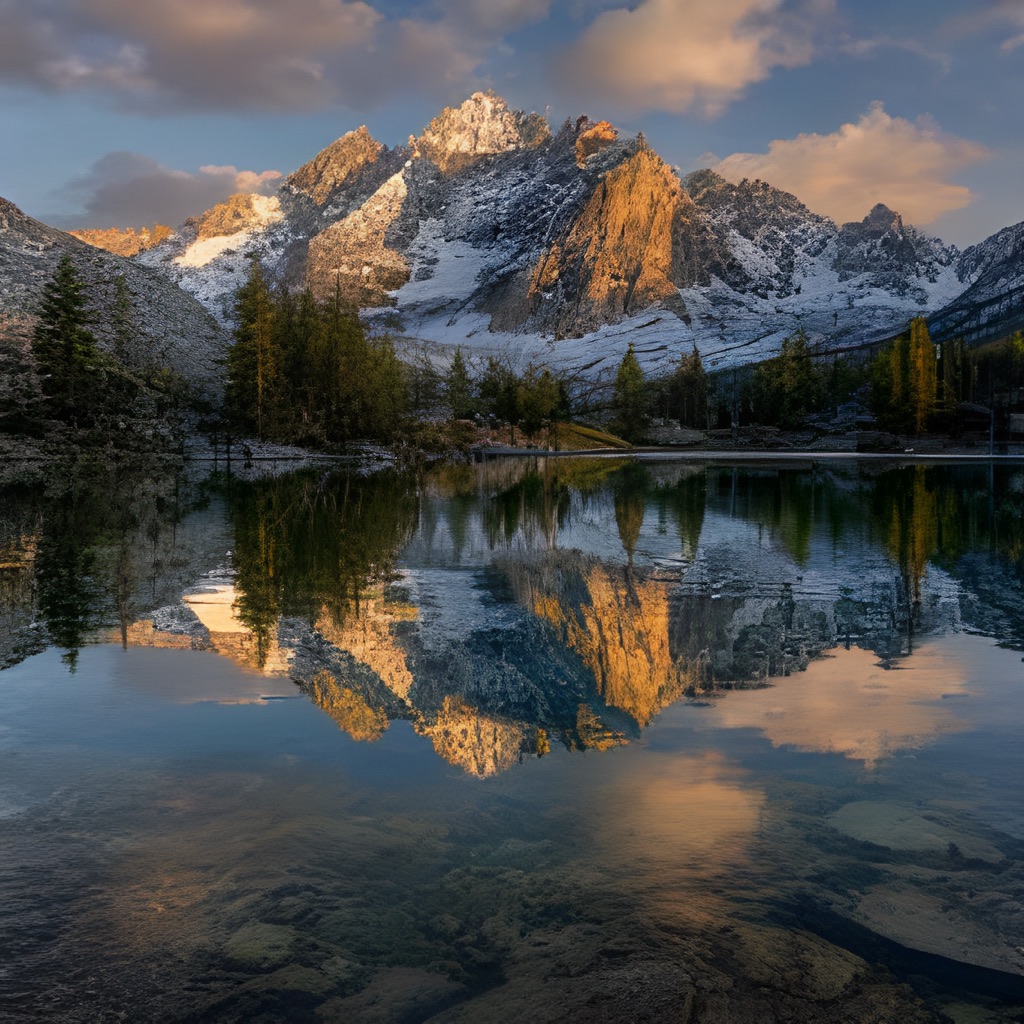
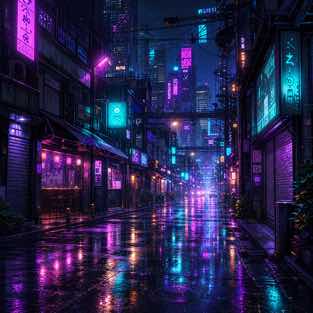
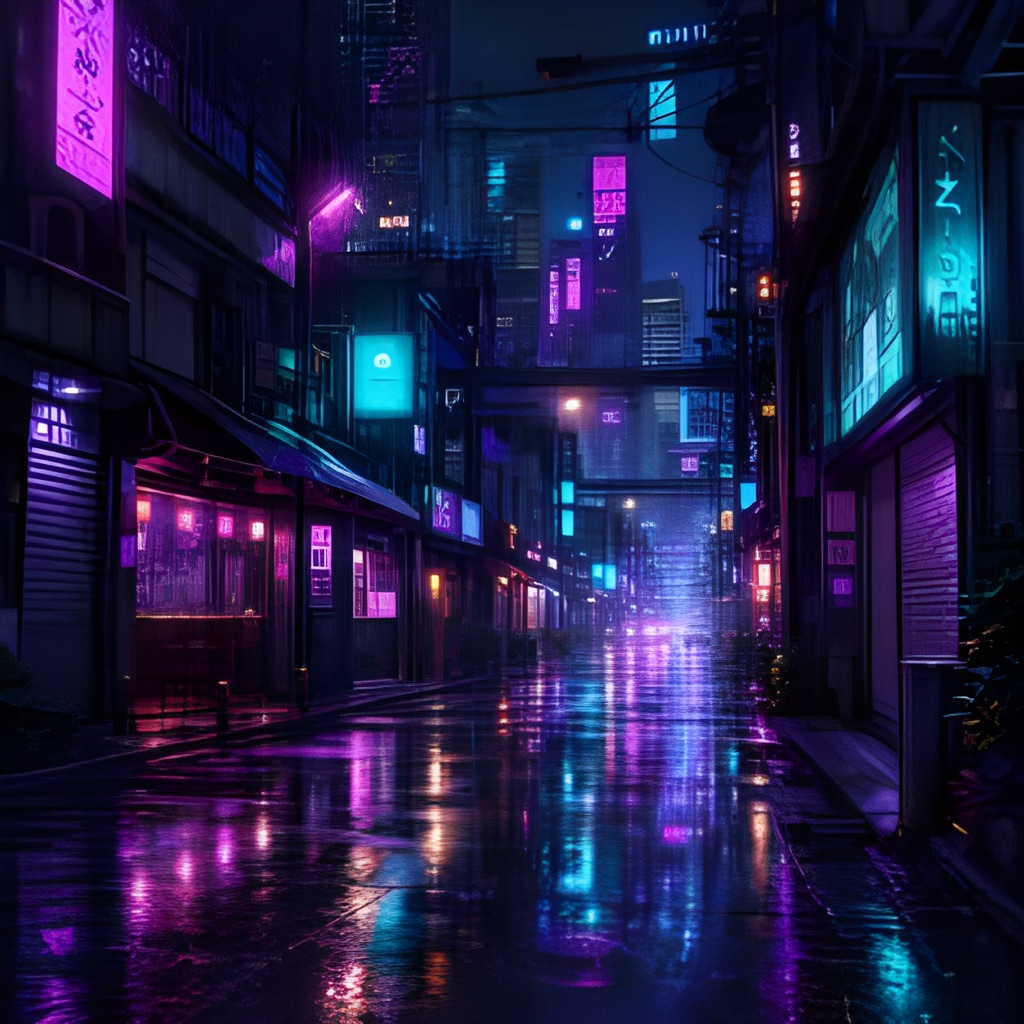
Upscaling with AI…
Protected by Cloudflare Turnstile · Images are processed, not stored.
Real results from this upscaler
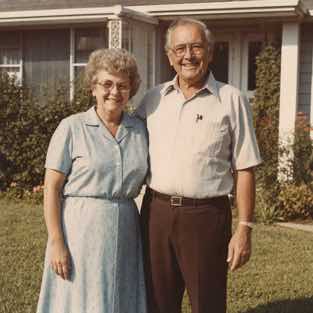
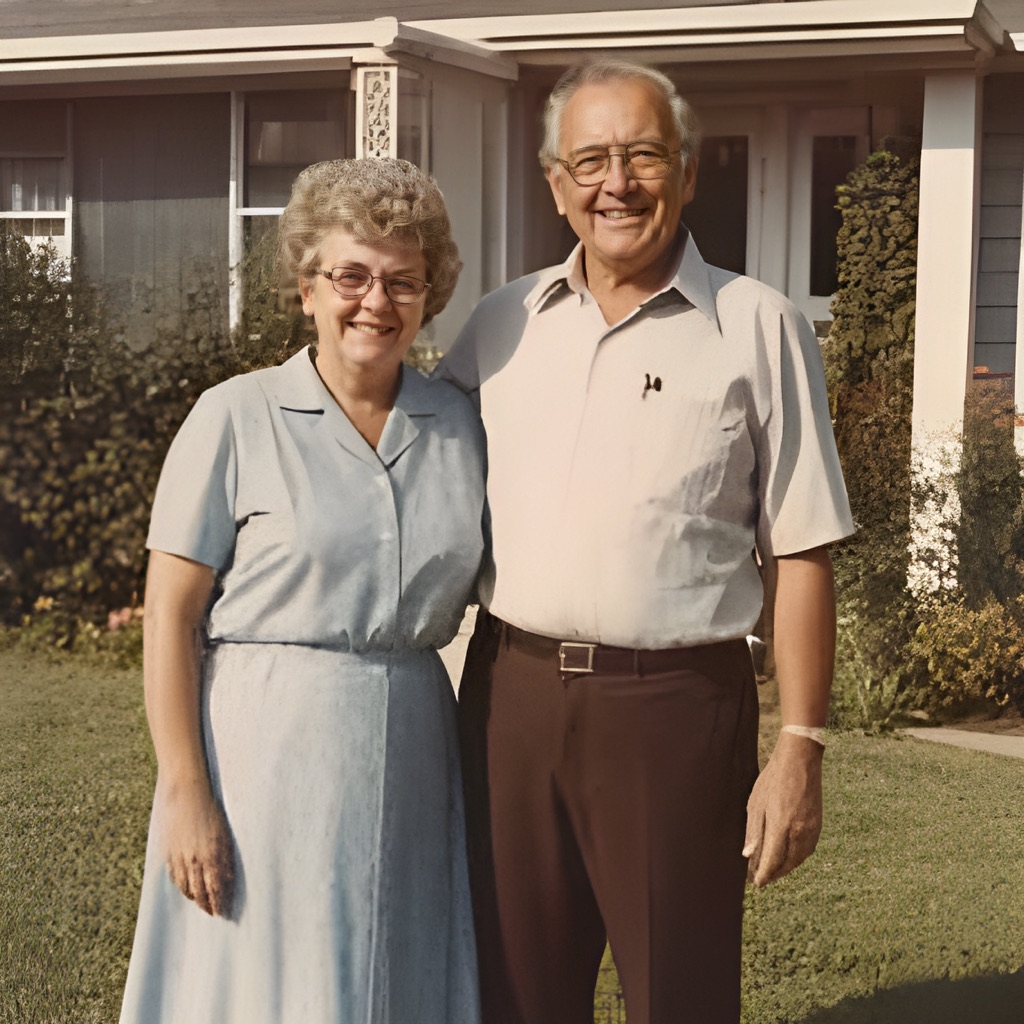
Five genuine before / after pairs from this image upscaler online, all produced at 4×. Drag the divider — nothing is staged.
Upscale images online in 3 steps
No software to install and nothing to learn. Our AI image upscaler online enlarges your photo and rebuilds detail while you watch.
Upload your image
Drop a JPG, PNG or WebP into the image upscaler online — a screenshot, product photo, old picture or an AI-generated image that came out too small.
Pick 2× or 4×
Choose how far to enlarge. Our AI increases resolution and sharpens edges instead of stretching pixels into a blur.
Compare & download
Slide the before / after handle, compare, then download your high-resolution image — free, watermark-free.
A sharper way to enlarge images online
Real AI detail, not a stretch
The super-resolution model inside this online upscaler rebuilds textures, so 4× larger still looks crisp — not soft, not pixelated.
No sign-up, no watermark
No account, no email, no paywall for daily use, nothing stamped on your result. Upscale an image online, download it, done.
Private by design
Your image is sent securely to the AI model to be upscaled, then discarded. We don't keep, sell or train on your photos.
Fast results
The AI does the heavy lifting on our servers, returning your enlarged image in seconds — no queue.
JPG, PNG & WebP
Upscale the formats you actually use — this online upscaler returns a clean, high-quality PNG ready to use anywhere.
Works everywhere
This image upscaler online runs in any modern browser on desktop or phone. No install, no extension, no app store — just open and upscale.
One image upscaler, a hundred uses
Whenever a picture is too small or too soft, the online upscaler enlarges it in seconds.
Simple credit packs
Use your free upscales every day. Need more? One credit = one upscale. Packs are one-time purchases and credits never expire.
- 100 AI upscales
- 2× and 4× upscaling
- Face enhancement included
- Credits never expire
- 300 AI upscales
- 2× and 4× upscaling
- Face enhancement included
- Credits never expire
- 1200 AI upscales
- 2× and 4× upscaling
- Face enhancement included
- Credits never expire
No account needed for the daily free quota — and signing up adds 5 bonus upscales for free.
What is an AI image upscaler?
An image upscaler is an online tool that increases the resolution of a picture — it makes the image physically larger by adding pixels that were never in the original file. A traditional upscaler simply stretches the pixels it already has, which is exactly why an enlarged photo usually ends up blurry, blocky or washed out. An AI image upscaler online works in a completely different way. It runs your photo through a super-resolution neural network trained on millions of images, predicts the fine detail a larger version should contain, and paints that detail back in as it enlarges. The result is a genuinely higher-resolution image with sharper edges, cleaner text and more believable texture — not just a bigger blur.
Because all of the work happens inside the model, you don't need Photoshop, a plugin, or any design skill. Upload a photo, choose 2× or 4×, and the AI rebuilds it online in seconds. It is the fastest way to enlarge an image without losing quality — whether you are rescuing a tiny old family photo, sharpening a screenshot, or turning a small AI-generated picture into something you can actually print or publish. And because our image upscaler runs entirely online, it works the same on Windows, macOS, Android and iPhone, straight from the browser you already have open.
When to upscale an image online
Enlarge old, low-resolution photos
Scans of old family photos, like pictures taken on early phone cameras, are often small. Upscaling them 4× online brings back facial detail, edge definition — large enough to print, frame or restore without the whole picture falling apart.
Sharpen blurry screenshots
Screenshots captured from videos, chats, slides or design tools tend to look pixelated the moment you enlarge them. An AI image upscaler online cleans up the edges, re-draws the fine lines, so text, icons, interface details stay readable at a bigger size.
Upscale AI-generated art
Pictures from tools like Midjourney, DALL·E or Stable Diffusion frequently export at 512–1024 px. Upscaling to 4K gives you a crisp, high-resolution version that holds up as a wallpaper, a poster print or client-ready work instead of a tiny thumbnail.
Prepare product photos for e-commerce
Online marketplaces reward large, sharp product images with proper zoom. Run product photos through the upscaler online so shoppers can inspect stitching, labels, texture up close — a small, soft shot quietly costs you sales.
Make wallpapers, avatars and banners fit
A favourite image is often just a little too small for the screen or profile you want it on. Upscaling online resizes it to a higher resolution while keeping it crisp, so it fills the space instead of stretching into a blur.
Tips for the sharpest results
Start with the best original you have
AI adds detail, but it works best when there is something to build on. If you can find a slightly larger, less-compressed copy of the image — the original file rather than a re-saved chat version — use that as your source; the image upscaler online will return a noticeably cleaner result.
Pick 2× for photos, 4× for tiny images
For a photo that is already a medium size, 2× keeps it looking natural while adding clarity. For very small images, 4× makes the bigger jump you actually need. Experimenting costs nothing — try both, keep whichever looks best.
Always check the before / after slider
Before downloading, drag the comparison handle across the result at full size. That is the quickest way to confirm the AI sharpened what matters — faces, text, product detail — rather than just enlarging the frame.